
Connect Switch Joy-Cons to Android
Admin
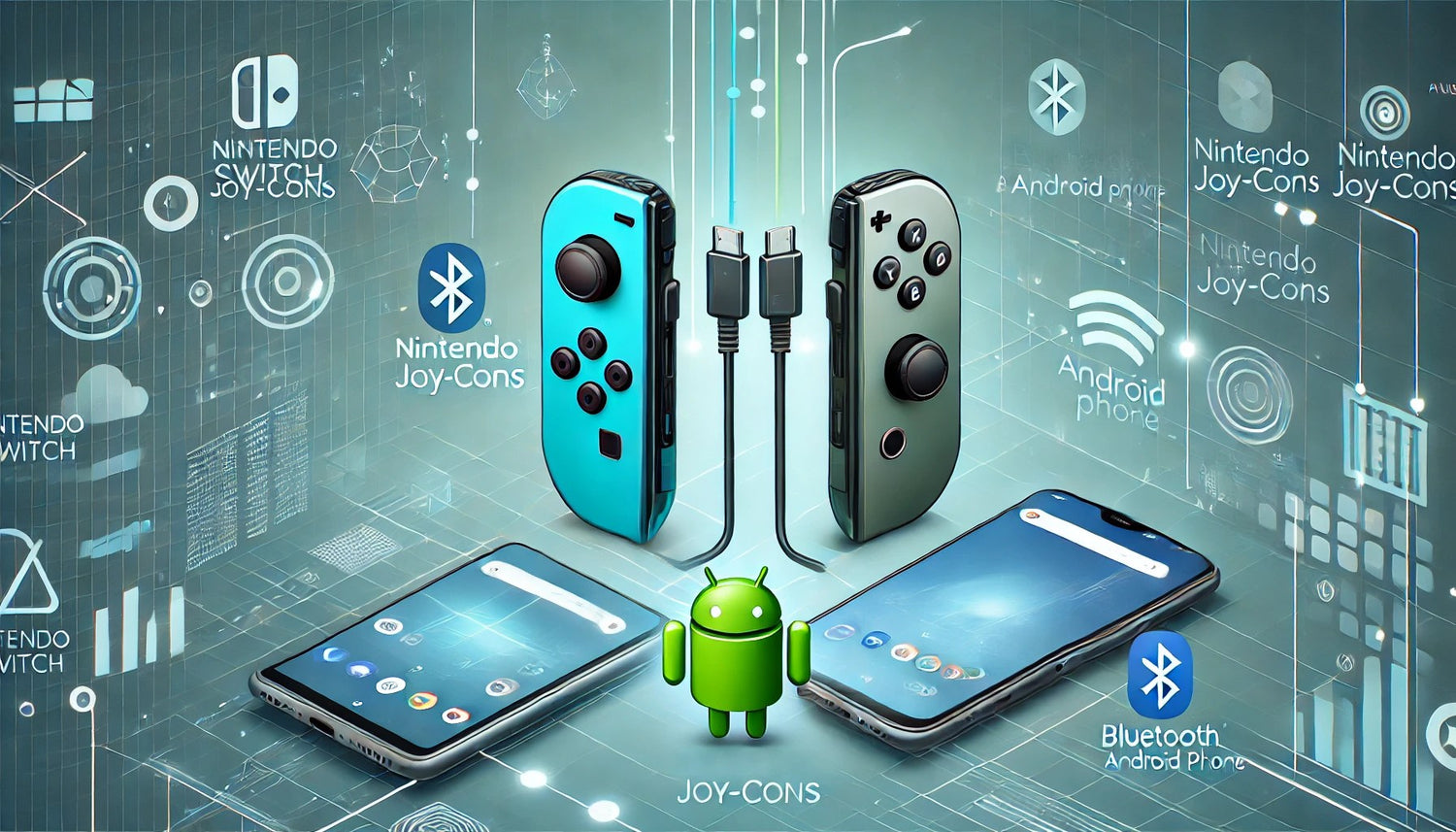
Want to play your favorite mobile games on Android with more precision and comfort? Good news! You can now connect your Switch Joy-Cons to your Android phone or tablet. Whether you're a fan of platformers, RPGs, or racing games, connecting your Joy-Cons to an Android device will significantly improve your gaming experience.
In this article, we'll guide you step by step on how to easily connect your Joy-Cons to your Android device.
How to connect Switch Joy-Cons on Android?
1. Prepare your Joy-Cons for pairing
Before you begin, make sure your Android device is up to date with the latest version of the operating system. Most devices running Android 10 and higher support Joy-Cons, but it's best to be sure.
- Charge your Joy-Cons : Make sure your Joy-Cons are fully charged before connecting them.
- Activate sync mode : Press and hold the SYNC button on the top of the Joy-Cons (near the LED indicators) until the indicator light starts flashing rapidly. This means your Joy-Cons are ready to connect.
2. Enable Bluetooth on your Android device
- Open Settings on your Android phone or tablet.
- Go to Connections , then select Bluetooth . Make sure Bluetooth is turned on.
3. Connect your Joy-Cons
- Scanning for new devices : Your Android device will start scanning for available Bluetooth devices nearby.
- Select your Joy-Cons : When you see “Joy-Con (L)” or “Joy-Con (R)” in the device list, select the one you want to connect and click Pair . If you want to use both Joy-Cons at the same time, repeat this process for the second Joy-Con.
- Pairing the Joy-Cons : Once you've selected your Joy-Cons, they'll be connected to your Android device. A confirmation message should appear to let you know the pairing was successful.
And there you have it, your Joy-Cons are now connected to your Android device!
Playing with your Joy-Cons on Android
Once your Joy-Cons are connected, you can open any mobile game that supports Bluetooth controllers. Titles like Minecraft , Fortnite , Asphalt 9 , or Genshin Impact are perfect for testing out your new setup. With your Joy-Cons, you'll enjoy a smoother gaming experience with more precise and responsive controls.
Tip: Not all mobile games support the simultaneous use of both Joy-Cons. Sometimes, just one is enough. Therefore, we recommend testing your settings in the game's training mode to see what works best.
How to Disconnect Your Switch Joy-Cons on Android
Finished playing and want to disconnect your Joy-Cons? It's super simple:
- Go back to your Android device's Bluetooth settings .
- Find your Joy-Cons in the list of connected devices, then select the Joy-Con you want to disconnect.
Tap Forget This Device or Disconnect . Your Joy-Cons will then be disconnected, but you can reconnect them at any time for your next gaming session.
Tip: Not all mobile games support the simultaneous use of both Joy-Cons. Sometimes, just one is enough. Therefore, we recommend testing your settings in the game's training mode to see what works best.
Add some style with our custom Joycons
And why not take this opportunity to customize your Joy-Cons? At Draw my Pad , you can create custom Joy-Cons that truly reflect your style.
Choose vibrant colors, cool patterns, or unique textures, and transform your controllers into an accessory as unique as your gameplay. Discover our collection of custom Joy-Cons or you can customize your Joy-Cons directly via the Workshop !
And if you're looking for even more inspiration, follow us on social media for tutorials, tips, and customization ideas for your gaming setup.
Keywords: how to connect Nintendo Switch joy-cons to Android, how to connect Nintendo Switch joy-cons to Android, how to connect Nintendo Switch joy-cons to a tablet, how to connect joy-cons to Android, custom Switch controller, custom Switch controller, custom Joycon, personalized joycon, Draw My Pad, disconnect joycon on Android, joystick cap